




Why Your QR Code Looks Blurry and How to Fix It Fast
A blurry QR code can ruin a marketing campaign, delay a shipment, or frustrate customers in seconds. If your QR code looks blurred, won't scan, or works on one phone but not another, don't panic. In most cases, you can fix QR code blur in under a minute.
This comprehensive guide explains:
- ● Why a QR code becomes blurred
- ● How to fix a blurred QR code immediately
- ● The exact resolution and print settings you should use
- ● When blur is actually a distortion issue
- ● How QR code error correction really works
Let's start with the fastest fixes.
QR Code Blur? Fix It in Under a Minute
If your QR code looks blurred or won't scan, try these quick checks first:
Disable “Fit to Page” or auto-scaling in your printer settings
Print at 300 DPI or higher
Use the original image file (not a screenshot)
Increase contrast (black on white works best)
Make sure there's enough white space around the code
Try scanning in brighter light
In many cases, the issue is a scaling or resolution mismatch. It's not the code itself — it's how it's being displayed or printed.
Now let's look at what causes QR codes to lose clarity.
Why QR Codes Become Blurry — And How to Fix Each Cause
Based on extensive real-world print testing and industry experience, we've systematically identified the most common causes of blurred QR codes and provided clear, actionable solutions for each scenario.
Low Resolution QR Code (And the Exact Resolution You Should Use)
Cause:
Your QR code was exported at too low a resolution. When enlarged, it becomes pixelated and blurred.
This often happens when:
- Exporting as a small JPG file
- Taking a screenshot instead of downloading the original
- Resizing a bitmap image
Fix:
- ✔️ For digital display: ensure each QR module (small square) has at least 4×4 pixels
- ✔️ Use a sufficiently large pixel dimension when exporting (for example, at least 1000 × 1000 px for print-oriented designs).
- ✔️ Use SVG format whenever possible (vector files scale without blur)
If you only have a small PNG or JPG file and you enlarge it, it will blur — no way around it. That's not a design flaw; that's physics.
QR Code Blurred After Printing (DPI, Scaling, Paper Settings)
Cause:
The QR code looks sharp on screen but blurry on paper.
Common reasons:
- Printer set to Draft Mode
- “Fit to Page” scaling enabled
- Printing at low DPI
- Low-quality paper absorbing ink
Fix:
- ✔️ Set printer to High Quality
- ✔️ Turn off automatic scaling
- ✔️ Print at 300 DPI minimum
- ✔️ Use matte or coated label paper
A real example:
A small retail shop designed an A4 sheet with multiple product labels containing QR codes. The print shop enabled “Fit to US Letter,” slightly distorting the codes and reducing their effective resolution. Reprinting at 300 DPI at the original size without scaling immediately resolved the scanning issue. Sometimes the fix is that simple.
Choosing a Reliable Barcode Label Printer
If adjusting DPI and scaling doesn't solve the issue, the problem may be your printer. Small QR codes on packaging labels or ID tags require sharp, precise output. Low-quality printers can cause modules to blur together, especially on small labels.
In such cases, high-density barcode label printers — such as professional iDPRT models with stable 300 or even 600 DPI output — help maintain clean edges and consistent scan performance on shipping labels and product packaging.
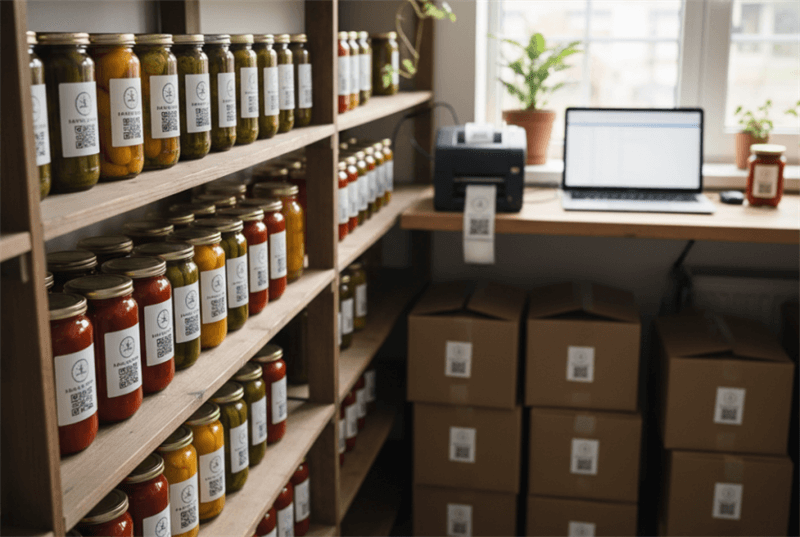
By improving print precision, you prevent scan clarity issues instead of fixing it later.
Examples of High-Resolution QR Code Label Printers
iDPRT SP320 Series– 3-inch Thermal Barcode Printer
Suitable for product labels, homemade food labels, ingredient labels, and logo stickers that require sharp, scannable QR codes.
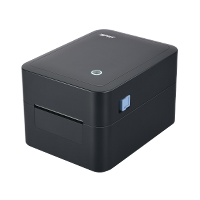
- Resolution: 203dpi
- Print method: Direct Thermal
- Max. print speed: 7ips(180mm/s)
- Max. print width: 2.83 inches(72mm)
- Memory:
iDPRT iF4 Series– 4-inch Thermal Transfer Barcode Printer
Built for durable, high-density 1D and 2D barcode printing, delivering sharp, smudge-resistant QR codes for asset tags and product labels.
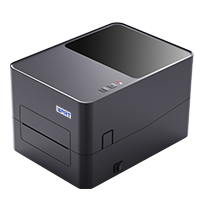
- Resolution: 203dpi, 300dpi
- Print method: Direct Thermal and Transfer Thermal
- Max. print speed: 6ips @ 203dpi, 5ips @ 300dpi
- Max. print width: 4.25"(108mm) @ 203dpi and 4.17"(108mm) @ 300dpi
- Memory: 64MB RAM/ 128MB Flash
iDPRT Gala Series – 4-inch Industrial Barcode Printer
Designed for high-volume printing small part ID tags, asset labels, and high-density 2D codes in industrial environments.
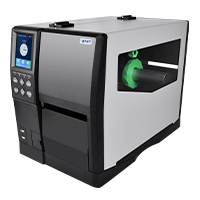
- Resolution: 203dpi, 300dpi or 600dpi
- Print method: Direct Thermal and Transfer Thermal
- Max. print speed: 14ips @ 203dpi, 10ips @ 300dpi, 6ips @ 600dpi
- Max. print width: 4.1"(104mm) @ 203dpi and 4.17"(106mm) @ 300dpi and 600dpi
- Memory: 2 GB Flash / 512 MB RAM
Why QR Codes Look Blurry on Screens or Social Media
Cause:
Compression.
Platforms like Instagram, WhatsApp, and Facebook compress uploaded images. If you upload a QR code as a JPG, compression artifacts can blur the edges.
Screenshots also reduce quality, especially if taken on older devices.
Fix:
- ✔️ Upload the original PNG or SVG file
- ✔️ Avoid screenshots
- ✔️ Don't apply filters
- ✔️ Keep contrast high
If your QR code looks blurry only after posting online, the platform's compression is likely the culprit.
Design Mistakes That Make QR Codes Look Blurry
Cause:
Poor contrast or missing quiet zone (white border).
A QR code needs:
- Strong contrast (black on white is ideal)
- A clear white border (called the quiet zone)
- No gradients or heavy styling
Fix:
- ✔️ Ensure a minimum quiet zone of 4 modules wide
- ✔️ Avoid pastel backgrounds
- ✔️ Avoid placing the QR code over busy images
A designer once embedded a QR code inside a colorful flyer background without preserving the quiet zone. It looked stylish, but scanning failed. Once they added proper spacing, it worked instantly.
As they say, “don't get cute with it” — clarity beats aesthetics when it comes to scannability.
When a Blurred QR Code Is Actually a Distortion Problem
Sometimes the issue isn't blur — it's distortion.
Distorted QR Code from Stretching or Wrong Aspect Ratio
A QR code must remain perfectly square.
If you:
- Stretch it horizontally
- Compress it vertically
- Resize unevenly
You distort the internal pattern.
Fix:
- ✔️ Always maintain a 1:1 aspect ratio
- ✔️ Resize proportionally
- ✔️ Avoid dragging only one side of the image box
Even slight distortion can break scan reliability.
Distorted QR Code on Curved Surfaces (Labels & Packaging)
When printed on bottles, tubes, or curved packaging, QR codes may warp.
Fix:
- ✔️ Increase the code size
- ✔️ Use higher error correction level (see next section)
- ✔️ Avoid placing QR codes near folds or edges
On curved surfaces, small QR codes fail more easily. Bigger is safer.
How Error Correction and Module Size Affect Blurred QR Codes
Now we move beyond surface fixes. Understanding this section gives you a real advantage.
How Error Correction Level Affects a Blurred QR Code
QR codes have built-in error correction:
This means even if up to 30% of the code is damaged or blurred, it may still scan (at Level H).
If your QR code is slightly blurred but still works, error correction is saving you.
If it fails, consider regenerating with a higher error correction level.
Minimum Module Size: Why Small QR Codes Turn Blurry
Each small square in a QR code is called a module. For reliable scanning:
- Each module should be at least 4×4 pixels on screen
- Printed modules should not fall below 0.4 mm per module
If modules are too small, blur and print spread will merge them together.
That's when scanning fails.
This is why tiny QR codes on business cards often struggle.
How to Fix a Blurry QR Code (Step-by-Step Guide)
Let’s walk through the best repair process.
Identify the Cause
Ask:
- Is it blurry on screen?
- Only after printing?
- Only on certain phones?
Diagnosis matters.
Fix Without Regenerating (Quick Improvements)
You can try:
- ✔️ Increasing contrast
- ✔️ Adjusting brightness
- ✔️ Printing at higher quality
- ✔️ Improving lighting
Be careful with sharpening filters — they can introduce noise.
There’s no true “blurry QR code fixer” tool that magically restores lost resolution. If the original file is low resolution, regeneration is the safest option.
Regenerate the QR Code Correctly
Best long-term fix:
- Export as SVG
- Use 300 DPI (print)
- Choose error correction level M or Q
- Preserve quiet zone
- Keep high contrast
That’s the clean solution.
How to Scan a Blurry QR Code When You Can't Reprint It
Sometimes reprinting isn't possible. Try:
- Increasing ambient light
- Holding the phone steady
- Adjusting distance
- Tilting slightly to reduce glare
Some scanning apps handle imperfect codes better than default cameras.
If one phone fails, try another — camera hardware varies.
Final Checklist to Avoid Blurry QR Codes
Before publishing or printing, review this structured checklist:
| Category | Requirement |
|---|---|
| File & Format |
✓ Use SVG whenever possible ✓ If using PNG, export at high resolution |
| Print Settings |
✓ Minimum 300 DPI ✓ Disable auto-scaling ✓ Use matte or coated paper, avoid glossy or reflective surfaces |
| Digital Display |
✓ Minimum 200×200 px for simple codes ✓ Larger size for complex URLs |
| Design Standards |
✓ Maintain a 4-module quiet zone ✓ Ensure strong contrast ✓ Avoid distortion |
| Final Validation |
✓ Test on at least 3 devices ✓ Test under different lighting conditions |
If you follow these steps, blurry QR code blur should no longer be an issue.
At the end of the day, a QR code isn’t complicated — but it is precise. Treat it like a small machine-readable graphic, not just a design element.
Get the resolution right, respect the spacing, and you’re golden.
FAQ: Blurry QR Codes and Scanning Issues
Q1: Why are my printed QR codes blurry?
Usually low DPI or scaling settings.
Q2: Do blurry QR codes still work?
Sometimes. Error correction can compensate up to 30%.
Q3: What resolution should a QR code be?
300 DPI for print; each module at least 4×4 pixels.
Q4: Does “Fit to Page” affect scanability?
Yes. It can distort proportions.
Q5: Can I fix a blurry QR code in Photoshop?
You can improve contrast, but true resolution cannot be restored. Regeneration is better.
Q6: Why does it scan on Android but not iPhone?
Camera sensors and processing differ. Lighting also matters.