




TL;DR:
Yes. A legacy EPL or ZPL printer can often be replaced without modifying WMS or ERP code, provided the new printer correctly interprets the existing command language, label templates, media settings, barcode commands, and fonts.
Before full deployment, it is essential to test real labels under operational conditions to confirm alignment, barcode readability, interface behavior, and batch printing reliability. This approach minimizes workflow disruptions and prevents raw code output or misaligned labels.
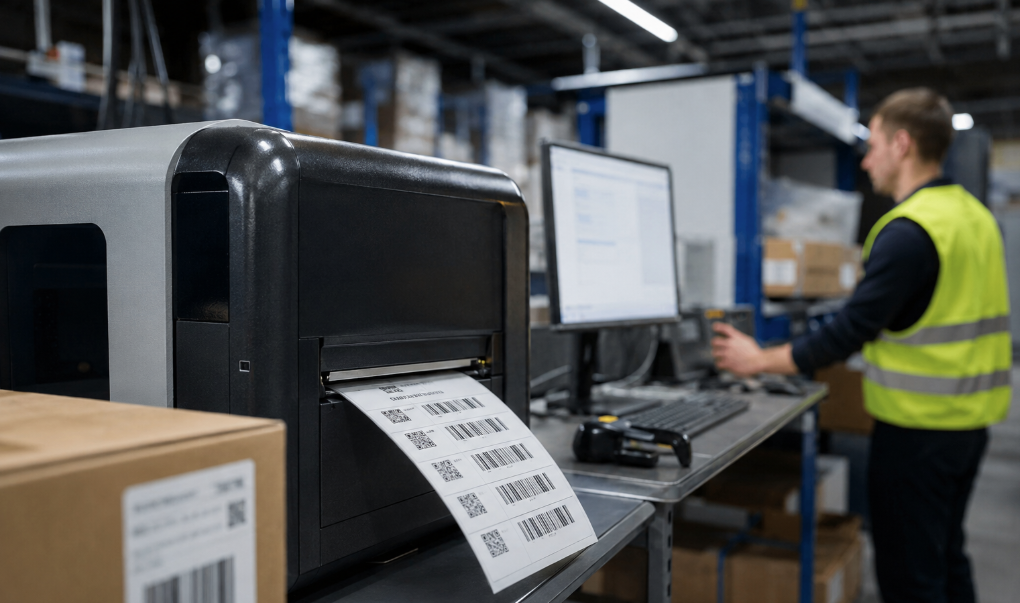
Legacy barcode printers typically emit EPL or ZPL raw commands directly from WMS, ERP, or shipping platforms. These commands define critical label parameters such as barcode type, text position, label size, media sensing, cutter or peeler behavior, and print speed. When a legacy printer reaches end-of-life, replacing it without verifying compatibility can lead to operational failures.
What Factors Determine EPL/ZPL Compatibility With a New Printer?
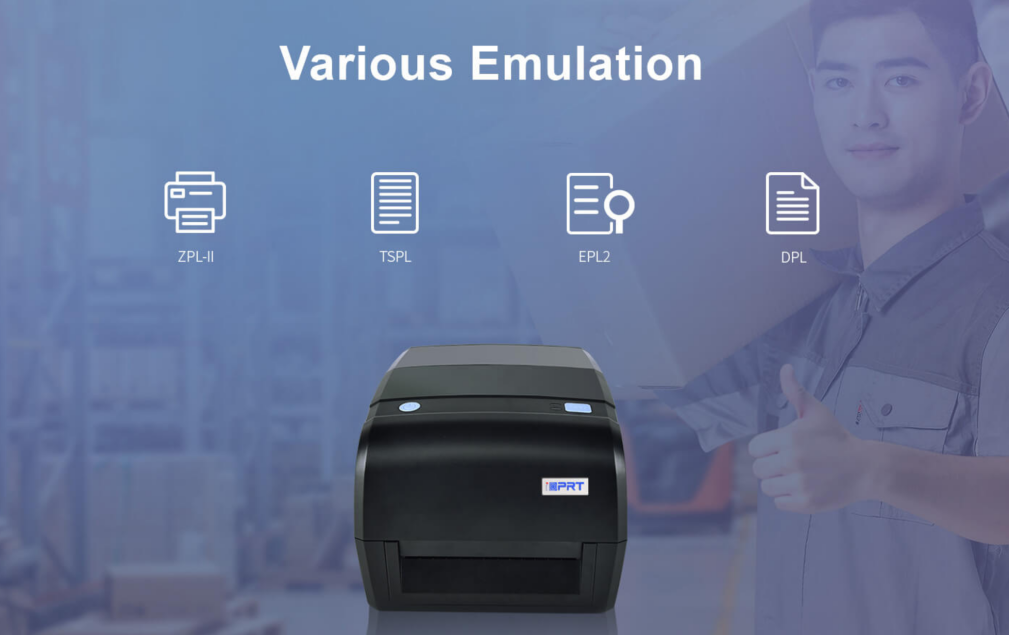
Compatibility depends on the printer’s ability to process commands, handle label templates, and maintain workflow integrity. A new barcode label printer must correctly interpret:
- ● EPL/ZPL Command Language & Emulation Mode: The firmware's hardware-level capacity to translate raw code into physical images without missing command subsets.
- ● Barcode Commands & DPI Scaling: Accurate rendering of 1D linear barcodes or 2D data matrices when scaling across different resolutions.
- ● Font Mapping & Text Alignment: Preventing text clipping or overlapping caused by missing bitmapped or scalable fonts.
- ● Label Origin & Margin Offsets: Matching the precise print coordinates defined by your historical WMS layouts.
- ● Media Detection: Proper calibration for gap, black mark, or continuous media types.
- ● Finishing Commands: Consistent execution of specialized instructions for automatic cutters, peelers, or rewinders.
For command language differences, see iDPRT’s EPL vs ZPL Guide.
Avoid assuming “compatible” implies flawless execution across all templates—subtle differences in emulation can affect complex layouts.
Why Does My Printer Sometimes Print Raw EPL/ZPL Code Instead of a Barcode?
This frustrating issue occurs when the thermal barcode printer interprets incoming raw command streams as plain text rather than executable control language. Common root causes include an incorrect device language mode, driver translation errors, or interface protocol misconfigurations.
For instance, during a recent infrastructure modernization, a European retailer migrating older thermal hardware observed that initial label outputs displayed raw ZPL code strings.
The diagnostic revealed the printer had defaulted to a generic text-only mode via TCP Port 9100. Forcing the device into ZPL II Emulation Mode through its web interface resolved the deployment bottleneck immediately, bypassing a costly backend WMS rewrite.
Pro IT Troubleshooting Tips:
- Verify that the printer’s active emulation mode explicitly matches the command language of your legacy templates.
- Confirm the print queue, host driver, or local print server is not converting raw ASCII commands into a graphic or text payload.
- Check that the data packet transmission protocol aligns with your WMS output architecture (e.g., raw network sockets vs. Windows spooling).
How Can I Test a Printer Before Fully Replacing My Legacy Device?
Pre-deployment testing is critical to avoid costly operational disruptions on the packing floor.
Start by executing a hardware self-test or printing configuration labels directly from the device to ensure basic mechanical operation and sensor calibration. Next, bypass the driver and send a minimal raw EPL/ZPL text script (e.g., a simple box or standard text string) to confirm the command language interpreter is responsive.
Finally, stream actual, high-density batch data from your live WMS or ERP under real operational speeds.
Key checklist items:
- ● Scan Success Rate: Ensure printed 1D/2D barcodes scan flawlessly on standard warehouse PDAs.
- ● Precision Alignment: Verify there is zero vertical or horizontal drift during a continuous batch run of 50+ labels.
- ● Media Calibration: Confirm the transmissive or reflective sensor accurately detects gaps or black marks without skipping webs.
- ● Peripheral Execution: Validate that physical finishing actions—such as cutter cycles or peeler sensor detection—trigger precisely when commanded by the code.
When Might WMS or Template Changes Be Necessary?
Even when utilizing highly advanced cross-compatible barcode printers, certain edge cases may require minor, localized template adjustments.
If your historical templates rely on proprietary bitmapped fonts or hardcoded graphics stored exclusively on an obsolete printer’s physical memory, the new hardware may substitute a default font, causing text overlapping. Similarly, resolution upgrades introduce scaling variables.
For example, a mid-sized fulfillment center in Germany recently migrated from legacy 203 DPI EPL hardware to 300 DPI ZPL-emulating devices. While no backend WMS code changes were required, high-density barcodes needed slight template optimization to account for the tighter dot pitch, ensuring optimal scannability at high operational speeds.
How to Choose a Modern Replacement Printer for Legacy EPL/ZPL Workflows
Selecting the right replacement printer involves evaluating both technical and operational criteria. The printer should support the required command language and emulation mode, handle label sizes and orientations accurately, and align with your WMS/ERP interface protocol.
Beyond technical compatibility, consider:
- Batch printing performance and reliability
- Media handling and finishing command support
- Firmware updates and technical documentation availability
iDPRT Barcode Printer Solutions for Legacy EPL/ZPL Workflows
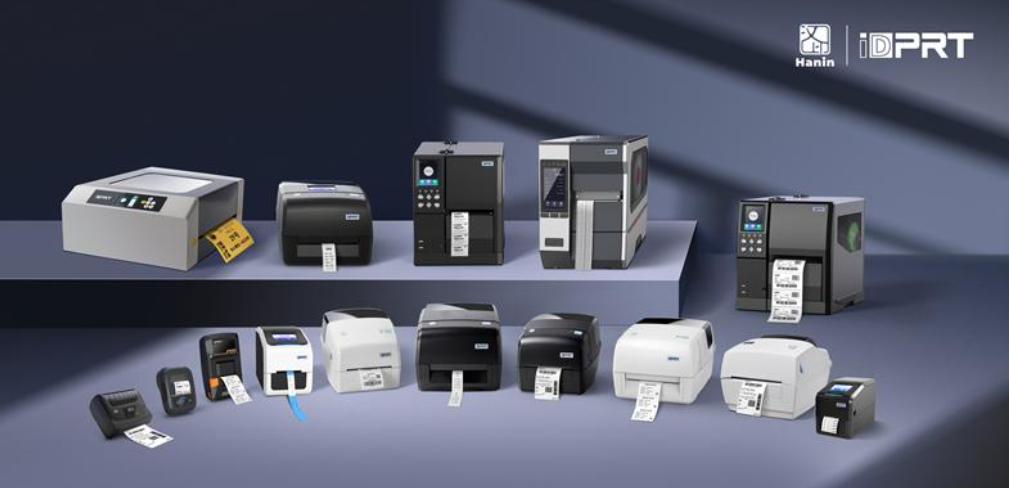
iDPRT is a reliable barcode printer manufacturer in China, delivering enterprise-grade thermal printing solutions to help reduce integration friction when replacing legacy systems and modernizing label printing workflows. With native support for ZPL, EPL, TSPL, and DPL, iDPRT printers simplify legacy system migrations.
iDPRT iF4 Compact 4-inch Barcode Printer
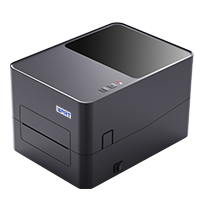
- Resolution: 203dpi, 300dpi
- Print method: Direct Thermal and Transfer Thermal
- Max. print speed: 6 ips @203 dpi, 5 ips @300 dpi
- Max. print width: 4.25"(108 mm) @203 dpi, 4.17"(108 mm) @300 dpi
- Memory: 128 MB Flash / 64 MB RAM
The iDPRT iF4 is ideal for desktop replacement at packing stations, inventory desks, and small warehouse work areas. With ZPL II, TSPL, and DPL emulation, USB/Ethernet connectivity, and optional Wi-Fi or Bluetooth, it supports stable legacy label workflows with compact, easy-maintenance deployment.
iDPRT iX4P 4-inch Industrial Barcode Printer
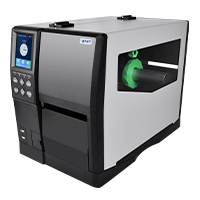
- Resolution: 203 dpi, 300 dpi or 600 dpi
- Print method: Direct Thermal and Transfer Thermal
- Max. print speed: 14 ips @203 dpi, 8 ips @300 dpi, 4 ips @600 dpi
- Max. print width: 4.1"(104 mm) @203 dpi, 4.17"(106 mm) @300 dpi and 600 dpi
- Memory: 256 MB Flash / 512 MB RAM
The iDPRT iX4P is built for industrial warehouses, logistics hubs, and manufacturing lines. Supporting ZPL, EPL, TSPL, and DPL, with high-speed output, rich interfaces, optional Wi-Fi, and cutter, peeler, or rewinder modules, it fits high-volume legacy printer replacement projects.
With iDPRT solutions, warehouse, logistics, and manufacturing teams can seamlessly replace outdated printers while ensuring label accuracy, workflow continuity, and multi-device compatibility.
Final Checklist Before Replacing a Legacy Printer
Before deployment, confirm:
- ✓ Legacy system outputs EPL, ZPL, or both
- ✓ Printer emulation mode aligns with your templates
- ✓ Real WMS/ERP templates produce correct labels
- ✓ Barcode readability, fonts, alignment, and DPI are verified
- ✓ Interface protocol (USB/Ethernet/TCP 9100/serial) is supported
- ✓ Batch printing, media calibration, and finishing commands function as expected
- ✓ Vendor support is available for configuration or troubleshooting
After completing the above checks, companies can proceed with legacy printer replacement more confidently.
For WMS or ERP systems dependent on EPL/ZPL commands, successful migration hinges not on simply swapping hardware, but on confirming that the new printer can reliably interpret existing commands, accurately output labels, and maintain current business workflows.
With thorough pre-deployment testing, companies can minimize printing errors, label mistakes, and operational disruptions without major system code changes—ensuring a smooth transition to a more modern and reliable labeling platform.
FAQ
Q: My legacy system outputs a mix of EPL and ZPL commands. Can a single replacement printer handle both simultaneously?
A: Yes. High-performance printers can automatically detect and switch between EPL and ZPL commands in real time. The printer parses incoming data packets and renders labels dynamically without manual firmware reconfiguration.
Q: Will upgrading from a 203 DPI legacy printer to a 300 DPI replacement distort my ZPL templates?
A: It can. ZPL coordinates are pixel-based, so a 203 DPI template printed on a 300 DPI device may shrink and shift. Ensure the printer supports automatic DPI scaling or adjust driver parameters accordingly.
Q: How do I send raw ZPL or EPL code directly to a network printer for testing?
A: On Windows, use the Generic/Text Only driver or command-line tools like LPR/LPD. For network printers, open a raw TCP connection to the printer’s IP on Port 9100 and send the code directly.
Q: Why do some embedded logos and custom graphics fail to print on emulation-mode hardware?
A: Legacy printers may store graphics in non-volatile memory. When replacing hardware, these assets must be re-uploaded to the new printer or embedded directly in the raw ZPL stream (e.g., base-64 encoded) using the vendor’s utility.